
A Gimkit host plays an important role in turning classroom review into an interactive learning experience. Whether you’re a new teacher or an experienced educator, learning how to manage a Gimkit live game can make lessons more engaging and easier to organize. You can select a kit, choose a Gimkit game mode, adjust game settings, and invite students through a game code or QR code.
During the session, you can monitor participation, manage players, and keep the activity focused on your lesson goal. After the game ends, Gimkit reports can help you review student performance and identify areas that need more practice. This guide explains the complete hosting process step by step.
What Is a Gimkit Host and How Does Gimkit Hosting Work?

A Gimkit host is usually the teacher who creates or selects a kit and runs a live session. The host controls the Gimkit live game, chooses a mode, shares access details, and manages players. In simple terms, Gimkit hosting connects your questions with a structured classroom activity. Gimkit’s official workflow begins with selecting a kit, choosing a mode, configuring options, sharing access, and starting the game.
The host also shapes the learning experience. You can adjust the Gimkit game options, decide whether students may join late, connect a class, and use the Gimkit Nickname Generator. During play, available controls can include player management, sound, timers, and leaderboard tools. Afterward, reports can help you understand what students actually learned rather than simply showing who finished first.
How to Host a Gimkit Game Step by Step
Learning how to host a Gimkit game becomes much easier when you follow the same sequence each time. Start inside your Gimkit dashboard, choose the kit you want, and select Play Live. The Gimkit Mode Picker then appears, allowing you to inspect available modes before moving into the setup screen.
From there, you can select a Gimkit kit, choose a mode, and configure Gimkit game settings around your lesson. Next, continue to the Gimkit lobby, where students can enter using the Gimkit game code, QR code, or join link. Check the players before you start Gimkit live game. This quick pause prevents many avoidable classroom problems.
Sign In and Choose Your Gimkit Kit
Your first move is simple: open your Gimkit educator account and locate the kit you plan to use. If you need new material, you can create a Gimkit kit or use available questions while preparing your activity. Focus on lesson relevance rather than question volume. A small, focused kit often gives cleaner learning evidence.
Click Play Live and Open the Mode Picker
Once your kit looks ready, select Play Live. Gimkit opens the Gimkit Mode Picker, where you can browse available formats and read mode descriptions. The official guide recommends using mode labels to find experiences suited to different classroom needs.
Select a Game Mode and Review Its Details
Before choosing a mode, consider your class and learning target. Gimkit labels modes according to qualities such as collaboration, strategy, and calmer play. Therefore, choose a Gimkit game mode that supports your lesson rather than simply picking the flashiest option.
Configure Gimkit Game Options
The setup screen controls important parts of the session. You can choose a Gimkit game goal, connect Classes, enable late joining, and use the nickname feature. Some options change according to the selected mode. In 2D modes, you may also adjust the balance between answering questions and gameplay.
Open the Lobby and Share the Game Code
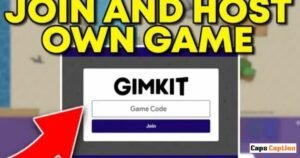
After setup, continue to open the lobby. Students can use the Gimkit join page, scan the Gimkit QR code, or follow a Gimkit join link. The official student workflow directs learners to gimkit.com/join when they use a game code.
Check Students Before Starting
The lobby gives you a useful final checkpoint. Look at names, unexpected players, and missing students before launching the activity. If you use Classes, student identification can become easier because their class names can appear during live games.
Start and Monitor the Gimkit Game
When everyone is ready, select Start Game. You can then manage a live Gimkit game through the available host controls. Depending on the mode, these controls may include the player list, leaderboard, sound, timer, spectating options, and End Game control.
How to Choose the Right Gimkit Game Mode
The best Gimkit game mode depends on what you want students to accomplish. A rapid review may need a simple structure, while collaborative learning may benefit from a mode built around interaction. Gimkit’s Mode Picker helps teachers compare modes through descriptions and labels before starting.
Think about time, class size, subject, and student confidence before deciding. For example, a vocabulary review may benefit from quick question cycles, while a group activity may need more collaboration. Your mode should support the Gimkit learning objective. Otherwise, exciting gameplay can become the main event instead of the learning.
Match the Mode to Your Learning Objective
Start with the academic goal rather than the game. If students need recall practice, prioritize question flow. If they need discussion or teamwork, consider a collaborative format. This approach makes Gimkit game-based learning feel purposeful instead of decorative.
Consider Time, Class Size, and Student Needs
Time matters because every classroom has a different rhythm. A ten-minute warm-up needs a different setup from a thirty-minute review. Large groups also need careful management. Gimkit currently lists a hard limit of 500 students for live games, while 2D modes have a 60-student limit.
| Classroom situation | Useful consideration |
|---|---|
| Quick review | Keep the game simple and short |
| Test preparation | Use focused questions |
| Team activity | Favor collaborative gameplay |
| Large class | Check the mode’s player limit |
| Formative check | Plan time for discussion afterward |
How Students Join a Hosted Gimkit Game
Understanding how students join Gimkit saves valuable classroom minutes. Without Classes, students normally visit the join page and enter the teacher’s game code. They can also use a QR code or direct link. If you use Classes, authenticated students can join through the class connection.
The simplest classroom instruction is short: open Gimkit’s join page, enter the code, and enter your name. When students join with game code, the host can watch them appear in the lobby. When students join with QR code, scanning removes the need to type the code manually.
Join With a Game Code
The game code appears in the host interface. Students enter it at gimkit.com/join. If your class uses managed accounts, the joining process can differ because Gimkit Classes can connect students automatically.
Join With a QR Code or Link
A QR code works especially well when students use tablets or phones. The host can hover over the displayed game code to reveal the QR option. You can also copy a direct link and share it through your classroom platform.
Join Through Gimkit Classes
Gimkit Classes can make recurring classroom use easier. Students connected to a class can join live games automatically when they are logged in. Their class identity can also appear on the leaderboard, which helps teachers recognize participants without relying on custom names.
What Can a Gimkit Host Do During a Live Game?
Once the game begins, the teacher becomes more than a spectator. A Gimkit host can monitor participation and use available controls to keep the activity moving. Depending on the mode, you can display the Gimkit leaderboard, inspect players, control sound, spectate participants, manage the timer, and end the game.
These controls also support practical Gimkit classroom management. If an unexpected participant enters, you can remove that player. If the class needs more time in a supported 2D game, you can add time. Gimkit states that hosts can add one minute at a time during 2D games within the stated time limits.
Monitor Players and Display the Leaderboard
The view Gimkit leaderboard feature can add excitement while giving you a quick picture of participation. Still, rankings don’t always equal mastery. A student may understand every concept but perform differently because gameplay skills vary.
Spectate 2D Games and Manage Players
In supported 2D games, hosts can spectate players and switch between them. The player controls also let hosts select participants for viewing or removal. This makes Gimkit player management useful when a live classroom needs quick intervention.
End or Extend a Live Game
If the activity reaches its teaching goal early, you can end a Gimkit game instead of letting it continue without purpose. In supported 2D modes, hosts can also add time to Gimkit game sessions by clicking the timer.
How to Host Gimkit for Different Classroom Activities
A strong Gimkit teacher guide should go beyond button instructions. The same platform can support warm-ups, review sessions, vocabulary practice, test preparation, and formative checks. The difference comes from your questions, game length, mode selection, and what you do after the session ends.
For example, you might use ten minutes for a review activity and then spend five minutes discussing missed questions. That simple structure makes use Gimkit for classroom review more meaningful. You aren’t using gameplay as filler. You’re using it as one part of the lesson.
Gimkit for Quick Classroom Review
A short review works well at the beginning or end of class. Choose questions tied to recent instruction and keep the activity focused. This approach makes a Gimkit review activity easier to connect with your daily lesson.
Gimkit for Formative Assessment
Gimkit can also function as a Gimkit formative assessment tool. Instead of asking only who won, examine which questions caused difficulty. That information can guide reteaching while the material remains fresh.
Gimkit for Test and Unit Review
For test preparation, create a focused kit that mirrors the concepts students will encounter. Avoid filling the game with unrelated questions. A targeted review gives you cleaner evidence and reduces cognitive clutter.
Gimkit for Collaborative Learning
Collaboration changes the classroom dynamic. When students solve problems together, the game can encourage communication alongside recall. Choose a mode that supports interaction when the learning goal requires teamwork.
How to Use Gimkit Reports to Track Student Performance
The real instructional value often appears after the game. Gimkit reports provide class and individual data when you host a kit you own. Gimkit currently offers Student Overview, General Overview, and Question Breakdown views. You can open reports immediately after a game or later from the Reports area.
This turns a game into useful Gimkit student data. You can access Gimkit game reports, identify weak concepts, and review student performance with more context. A report should not become a score sheet alone. Instead, use it as evidence for what you should explain, practice, or revisit next.
Review the Student Overview
The Gimkit student overview helps you examine individual results. Look for patterns across students rather than judging one learner from one activity. A single game is a snapshot, not a complete academic profile.
Analyze the General Overview
The Gimkit general overview provides a broader classroom picture. It can help you notice whether the class struggled with the same material. When several students miss related questions, that pattern deserves attention.
Use Question Breakdown to Find Weak Areas
The Gimkit question breakdown is especially useful for identifying troublesome concepts. If most students miss one question, inspect the concept behind it. The problem may involve wording, prior knowledge, or an unclear explanation.
Turn Gimkit Results Into Your Next Lesson
When you analyze Gimkit results, connect them to your next instructional move. A difficult concept may need another example, guided practice, or a short reteaching activity. Reports become valuable when they change what you do next.
Gimkit Host Tips for a Better Classroom Experience
Good hosting starts before the first student joins. Decide the Gimkit learning objective, choose focused questions, and select a mode that fits the lesson. Then set a realistic time limit. These small decisions prevent the activity from becoming a noisy detour.
Most importantly, explain the purpose clearly. Tell students why they are playing and what they should notice while answering. When you use Gimkit as assessment, the goal isn’t simply to produce a winner. The goal is to uncover useful evidence of learning.
Start With the Learning Goal
Ask what students should understand by the end. Then build the activity around that answer. This approach makes Gimkit lesson planning more deliberate and keeps the game connected to instruction.
Keep Kits Focused and Manageable
A focused kit usually works better than a giant collection of unrelated questions. Include material that directly supports the lesson. If necessary, create separate kits for different concepts instead of cramming everything together.
Explain Rules Before Students Join
Students should know how to enter, what the goal means, how long the activity lasts, and what classroom behavior you expect. Clear instructions reduce interruptions once the game begins.
Keep Competition Connected to Learning
Competition can motivate some students while distracting others. Frame the activity around improvement and understanding. Celebrate thoughtful answers and progress rather than treating the leaderboard as the sole measure of success.
Common Gimkit Hosting Problems and How to Fix Them
Even a well-planned session can hit a snag. The most common Gimkit hosting problems involve joining, names, late arrivals, connection issues, or excessive competition. Most problems become easier to handle when you check the lobby and settings before starting.
For Gimkit game troubleshooting, first verify the code and joining method. Then check the late-joining setting and player list. If students cannot join Gimkit, make sure they are using the correct join page and current game code. These simple checks can rescue a lesson from unnecessary chaos.
Students Cannot Join the Game
Check that students are using the correct code and Gimkit join page. Also check whether Gimkit late joining is enabled. Live games allow late joining by default, although hosts can turn the setting off.
Unexpected or Inappropriate Names Appear
The host can remove players from the lobby or live game. The Gimkit Nickname Generator can also assign safe names automatically. Gimkit notes that the nickname feature disappears when Classes are being used.
Students Join After the Game Starts
If you want flexibility, allow students to join late. This helps when learners arrive late or experience connection problems. For a tightly controlled assessment, however, turning late joining off may make more sense.
Gameplay Becomes Too Competitive
Competition isn’t automatically bad. The problem starts when students chase the game mechanics and ignore the questions. Choose a calmer or collaborative mode and remind learners that the academic goal comes first.
Students Focus More on Gameplay Than Questions
If this happens, shorten the session and discuss difficult questions immediately afterward. You can also adjust available game-balance settings in supported 2D modes. Gimkit provides options that can change the relationship between question answering and gameplay rewards.
- Read More: Team Aelftech.com
- Read More: PressVibePulse com
FAQs
What is a Gimkit host?
A Gimkit host is the teacher or account holder who runs a live session. The host selects the kit and mode, configures options, lets students join, starts the game, and manages available controls.
How do you host a Gimkit game?
To how to host Gimkit, select a kit, choose Play Live, select a mode, configure options, open the lobby, share access details, and start the session. The official workflow follows these same core stages.
Do students need a Gimkit account to join?
Students can join live games through the normal join process. Classes can change the experience because authenticated students can connect automatically to their class.
How do students join a Gimkit game?
To understand how students join Gimkit, students can visit gimkit.com/join and enter the game code. They can also scan a QR code or use a direct join link.
Can students join after a Gimkit game starts?
Yes, when the host has Join in Late enabled. Gimkit states that live games allow late joining by default. Hosts can switch the setting off during game setup.
Can a Gimkit host remove a player?
Yes. Hosts can remove players from the lobby and during live games. This helps when an unexpected participant enters or a player uses an unsuitable name.
Can a Gimkit host end a game early?
Yes. The host can use the End Game control when available. This can be useful when the class has gathered enough evidence and needs to move into discussion or reteaching.
Can a Gimkit host see student performance?
Yes. After hosting a kit you own, Gimkit provides class and individual report data. Teachers can review different report views after the game finishes.
Does Gimkit provide game reports?
Yes. A Gimkit game report can include Student Overview, General Overview, and Question Breakdown views. Reports can be opened after the game or accessed later from the Reports section.
How many students can join a Gimkit game?
Gimkit currently lists a 500-student hard limit for live games and a separate 60-student hard limit for 2D modes. Connection reliability can still affect the practical experience.
What is the difference between Gimkit Basic and Gimkit Pro?
Gimkit Basic and Gimkit Pro provide different access to game modes and features. Gimkit’s current player-limit documentation says Basic offers featured modes while Pro provides access to all modes, including Pro-exclusive modes.
Can teachers use Gimkit assignments?
Yes. Gimkit assignments provide an option for work outside a live classroom session. Teachers can review assignment results and reports through the dashboard.
Can Gimkit support asynchronous learning?
Yes. Gimkit asynchronous learning can work through Assignments, allowing students to complete teacher-set activities outside the live classroom. Teachers can then review available results through the assignment reporting tools.
Final Takeaway: Making the Most of Gimkit Hosting
Learning how to host Gimkit as a teacher is only the beginning. The stronger approach connects every setting with a clear purpose. Pick relevant questions, choose an appropriate mode, manage the lobby carefully, and give students simple joining instructions. Then use the results to guide your next teaching decision.
The best Gimkit classroom activity doesn’t end when the leaderboard appears. Instead, it creates a useful feedback loop: students answer, you inspect the evidence, and your next lesson responds. That is where game-based learning becomes genuinely useful rather than just another classroom distraction.

Caps Caption is your go-to source for Instagram captions, quotes, bio ideas, and social media captions. Find the perfect words for every moment.